
3.2. Installation And Launch#
The desktop application is the local Qt interface for pyCSAMT. It is meant for interactive work: loading EDI surveys, inspecting station metadata, opening map and profile views, running quality-control and correction tools, and preparing forward or inversion workflows from one workspace.
3.2.1. Why Installation Matters#
The desktop app depends on both scientific libraries and interface libraries. A successful installation is not only about opening a window; it is about making sure the same environment can load survey data, draw maps, render profiles, write exports, and prepare inversion files without switching Python installations halfway through a project.
Use a dedicated environment when possible. Qt, plotting, geospatial, and solver-related packages are common sources of version conflicts in scientific Python projects. Keeping the desktop app in its own environment makes later troubleshooting much easier because every command, export, and log message comes from the same package set.
3.2.2. Choose An Installation Path#
Most users should choose one of these paths:
Situation |
Install Command |
Why Choose It |
|---|---|---|
You do not want to set up Python at all |
Download the installer — see Download A Ready-Made Installer |
One-click install (Windows |
You want only the desktop GUI |
|
Installs the Qt interface and desktop plotting dependencies without the web application stack. |
You want all application surfaces |
|
Installs the desktop GUI and browser-based application dependencies in one environment. |
You are working from this repository |
|
Keeps source edits live and includes documentation tools for local guide development. |
You are preparing development builds |
|
Installs the broader optional stack used for apps, agents, geospatial workflows, tests, and documentation. |
If you are unsure, start with pycsamt[desktop]. Add the broader extras
only when you know you need the web app, documentation build, agents, or full
development stack. Prefer not to install Python at all? Use the installer
below instead.
3.2.3. Download A Ready-Made Installer#
Every application surface shares the same scientific core, so the installer below contains the full desktop suite: Profile, Map, QC, Correction, Forward, Inversion, Interpretation, Airborne EM, and the AI-processing agents — one binary, no separate “lite” build. It ships with a 30-day full-feature trial; see Licensing below for what happens after that.
Platform |
Download |
Notes |
|---|---|---|
Windows |
Installs to Program Files with Start Menu / Desktop shortcuts and a proper uninstaller. Unsigned build — Windows SmartScreen will warn on first run; choose More info → Run anyway. |
|
Linux (x86-64) |
Self-extracting installer; no root needed. Installs to
|
Both links always point to the newest release. Older versions, the release
notes and a SHA256SUMS.txt checksum file are on the
GitHub releases page.
On Linux, make the downloaded file executable and run it:
chmod +x pycsamt-desktop-linux-x86_64.sh
./pycsamt-desktop-linux-x86_64.sh               # install
./pycsamt-desktop-linux-x86_64.sh --uninstall   # remove
To check a download against the published checksums, put
SHA256SUMS.txt next to it and run
sha256sum -c --ignore-missing SHA256SUMS.txt (Linux) or
Get-FileHash pycsamt-desktop-setup.exe (Windows PowerShell).
Uninstalling leaves your trial/license state untouched (Windows registry
under HKCU\Software\earthai-tech\pycsamt; Linux ~/.pycsamt and
~/.config/earthai-tech), so reinstalling later does not reset the clock
or drop an already-activated key.
3.2.4. Licensing#
The installer and the pip-installed package are the same software with
the same features either way — licensing only gates how long it keeps
running, not which tools are available.
- Trial
Every fresh install starts a 30-day full-feature trial, timed from first launch. When it ends, the app opens straight to a license-key prompt instead of the main window.
- Academic and educational use
Free for coursework, research, and teaching. Paste this key into Preferences ▸ License (or the trial-expiry dialog’s key field):
(Academic key not yet published — check back after the v2.6.4 release, or contact earthai-tech directly in the meantime.)
- Professional use
Contact earthai-tech to purchase a license. You will receive a key by the same Preferences ▸ License field once payment is arranged — there is no separate “professional build” to install.
3.2.5. Install The Desktop Extra#
From a released package, install the desktop extra:
pip install "pycsamt[desktop]"
If you also want the Dash web app in the same environment, install the application extra instead:
pip install "pycsamt[app]"
For development from a source checkout, install the package in editable mode with the desktop and documentation dependencies:
git clone https://github.com/earthai-tech/pycsamt.git
cd pycsamt
pip install -e ".[desktop,docs]"
The desktop extra installs the Qt runtime and plotting dependencies used by the GUI:
Dependency |
Used for |
|---|---|
|
the desktop windowing toolkit, dialogs, menus, and toolbar controls |
|
responsive station and signal views |
|
optional map tile support for geospatial views |
The app extra includes the desktop extra plus the Dash web application stack. It is convenient for training, demonstrations, and users who switch between the local GUI and browser workflows.
3.2.6. Launch The Application#
After installation, start the desktop GUI from the active environment:
pycsamt-desktop
The older command remains available as an alias:
pycsamt-gui
From a source checkout, the module entry point is equivalent:
python -m pycsamt.app.desktop
Use the module entry point when a console script is not yet visible on
PATH. If the module entry point works but pycsamt-desktop does not,
the installation is usually fine and the shell simply cannot find the
environment’s script directory.
On first launch the application opens with an empty survey workspace. The left panel is reserved for stations, the center panel summarizes the survey, and the toolbar exposes the main workflow windows.
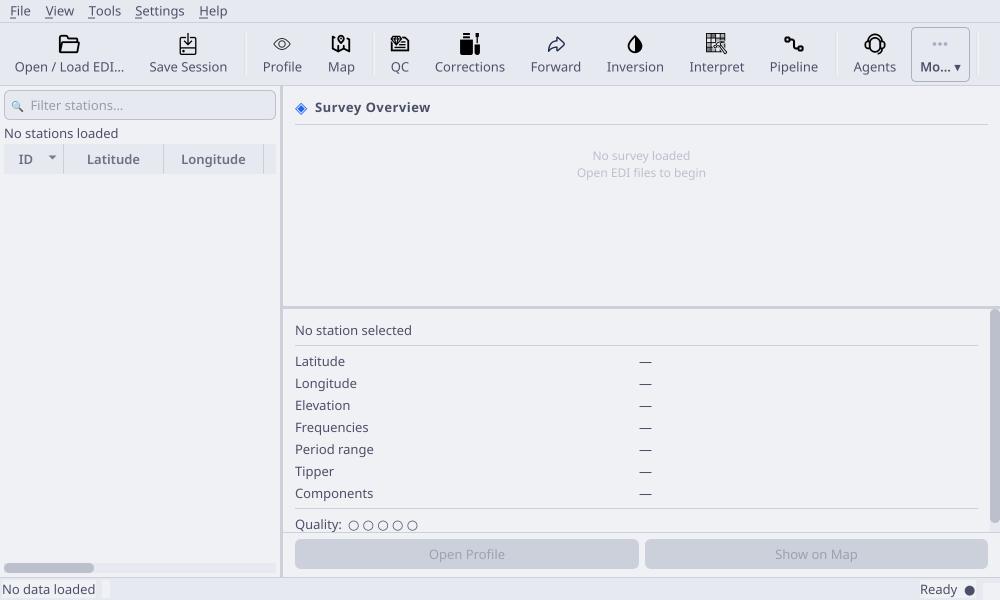
Empty desktop workspace before survey data are loaded.#
3.2.7. Load A First EDI Survey#
Use Open / Load EDI… to load one or more EDI files. The loader accepts
individual files or a folder containing a survey line. For the sample WILLY
data, a typical folder is one of the L18PLT, L22PLT, L26PLT,
L30PLT, or L34PLT line folders under data/AMT/WILLY_DATA.
For a first launch, prefer a small known line folder instead of a large campaign directory. A small input makes it easier to tell whether an issue is caused by installation, file selection, or the data themselves. After the loader succeeds, the station table should show one row per station and the overview card should show frequency and coordinate information.
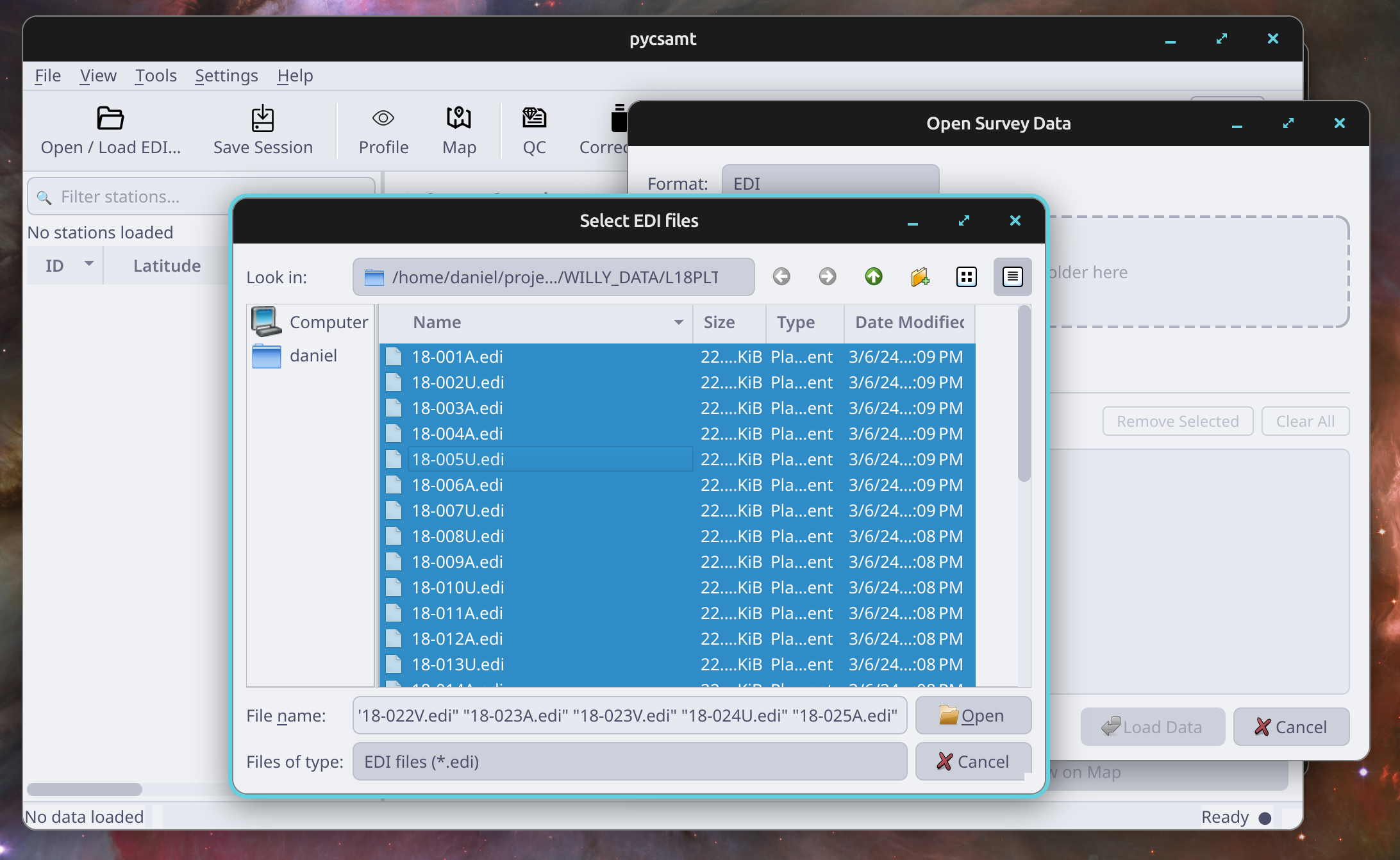
Loading a line by selecting multiple .edi files from the survey folder.#
After loading, the station table, overview panel, profile view, map view, QC tools, correction tools, forward modelling, inversion, interpretation, and agent windows operate on the active session.
3.2.8. What Success Looks Like#
The installation is ready for real work when these checks pass:
Check |
Expected Result |
What It Proves |
|---|---|---|
|
The command prints help or exits cleanly. |
The console script is installed in the active environment. |
Empty GUI launch |
The main window opens with no Qt import or display error. |
Qt and desktop resources are available. |
Load a small EDI folder |
Station rows appear in the main table. |
File readers and the |
Open Map |
Station markers draw without a plotting error. |
Map plotting dependencies are usable. |
Open Profile |
Response curves or profile tabs render for a selected station. |
Scientific plotting and station selection are connected. |
Save Session |
|
The app can save user preferences and layout state. |
These checks are deliberately simple. They do not prove that every survey file is valid, but they confirm the desktop stack is healthy enough to begin normal loading and QC work.
3.2.9. First-Launch Checklist#
After installing and launching the desktop, do this short check before using the app for real project work:
launch from the same environment where pyCSAMT was installed;
confirm the empty workspace appears without Qt or display errors;
load a small known EDI set rather than a full survey campaign;
verify that station count, coordinates, and frequency coverage appear;
open the profile and map views once to confirm plotting dependencies work;
save the session so the application can write
~/.pycsamt/session.json;close and relaunch the app to confirm preferences and recent files restore.
This check separates installation problems from data problems. If the sample or known-good survey works, later failures are more likely to come from a specific input folder, missing metadata, or an unsupported file variation.
3.2.10. Recommended Environment#
Use a dedicated environment for the desktop app so Qt and geospatial packages do not conflict with other Python projects:
conda create -n pycsamt-v2 python=3.12
conda activate pycsamt-v2
pip install -e ".[desktop,docs]"
For day-to-day work in this repository, activate the environment before launching or building documentation:
conda activate pycsamt-v2
pycsamt-desktop
3.2.11. Platform Notes#
Windows users should run the command from Anaconda Prompt, PowerShell, or Git
Bash after activating the environment. If the command is not found, verify
that the environment’s Scripts directory is on PATH.
Linux users may need system Qt/OpenGL libraries in minimal containers or headless servers. The desktop app is intended for an interactive display; use the Python API, CLI, or web app for non-interactive runs.
macOS users should launch from a terminal attached to the active environment. If a gatekeeper prompt appears for local Python or Qt components, approve the environment that owns the installed dependencies.
3.2.12. Common Installation Problems#
pycsamt-desktopis not foundActivate the environment where pyCSAMT was installed. If the command is still missing, try
python -m pycsamt.app.desktopfrom the same shell. When the module command works, the issue is usuallyPATHrather than the package itself.ModuleNotFoundError: PySide6The desktop extra was not installed in the active environment. Reinstall with
pip install "pycsamt[desktop]"for a released package, orpip install -e ".[desktop]"from a source checkout.- The window opens but plots are blank
Confirm that the selected files actually loaded and that a station is selected. If the station table is empty, the problem is loading rather than plotting. If the table has stations but plots fail, check the log dock and reinstall the desktop extra.
- Basemap tiles do not appear
Basemaps are optional and depend on geospatial packages and network tile access. The desktop can still inspect station geometry, contours, profiles, QC, and exports without basemap tiles.
- External inversion engines are unavailable
The desktop can prepare input files without every external solver binary being installed. Configure solver paths later in Preferences when you are ready to run Occam2D, ModEM, MARE2DEM, or another external engine.
3.2.13. Quick Verification#
Check that the command is available:
pycsamt-desktop --help
pycsamt-gui --help
Then launch the GUI:
pycsamt-desktop
If the application reports that PySide6 is missing, reinstall with the
desktop extra:
pip install -e ".[desktop]"