
Agent Master#
Agent Master is the conversational application of pyCSAMT. You describe a CSAMT / AMT / MT task in plain language and it plans the workflow, asks for any parameters it needs, runs the right pyCSAMT agents, and returns figures, reports, reproducible code, and a full provenance trace. Its tagline says it plainly: describe your workflow — I handle the rest.
It complements the other surfaces rather than replacing them. The desktop GUI, web app, and MapView are point-and-click; Agent Master is the chat-driven front end over the same agents and the same scientific core, for when it is faster to say what you want than to click through to it.
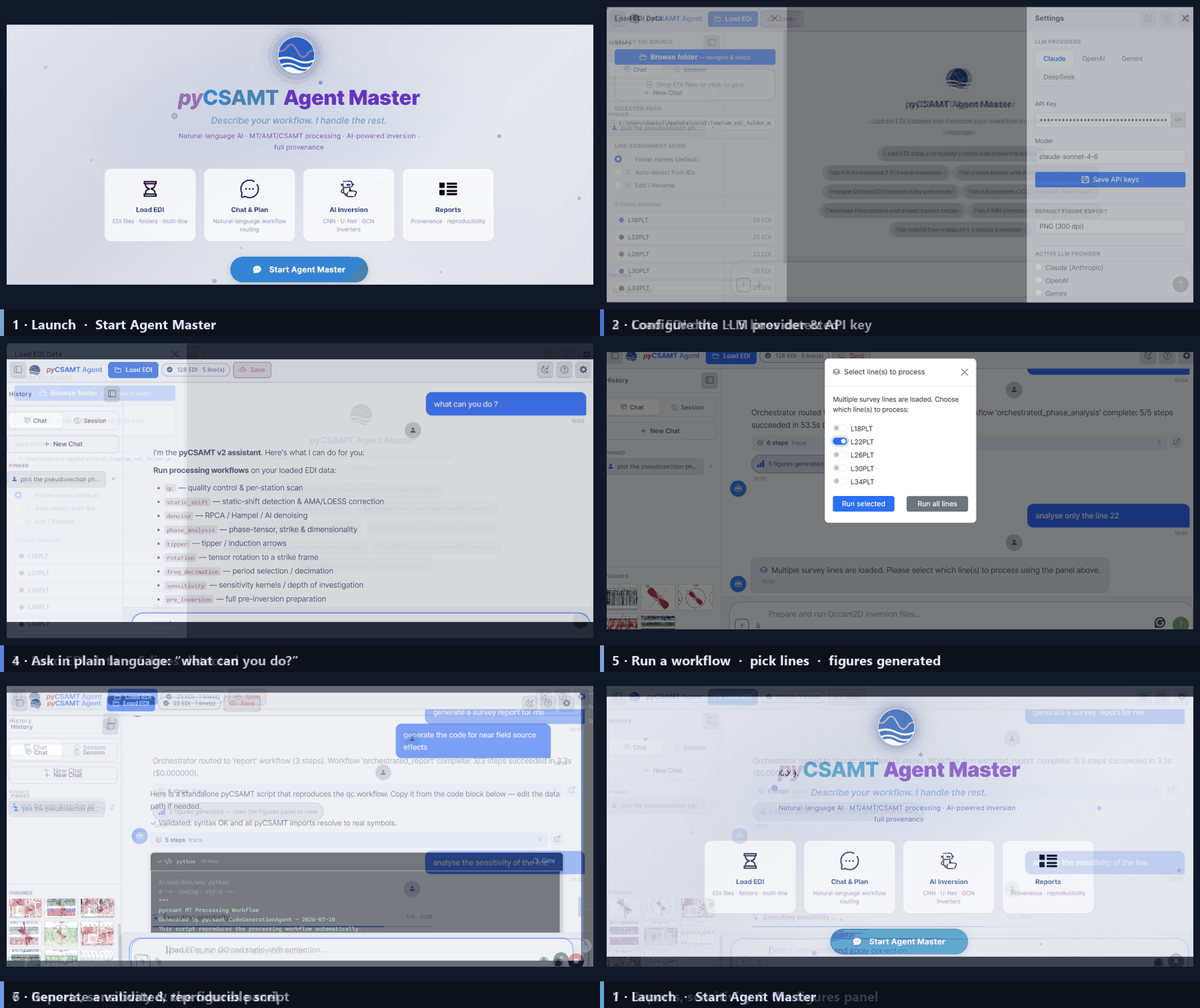
A Two-Minute Walkthrough#
A full Agent Master session at a glance: launch, configure the LLM, load EDI data, ask what can you do?, run a workflow (with line selection and generated figures), generate a validated script, and get a report with a sensitivity analysis. Each step below is documented in detail on the following pages.#
Explore the Guide#
Pick a page to dive in. A good first pass, in order, is Installation → LLM Configuration → Welcome & Chat → Workflows & Agents → Tools, Memory & Outputs → Agent Master & Other Apps → Troubleshooting.
Install the app extra and launch pycsamt-agent.
The welcome screen, the main window, loading EDI data, and how the chat works.
The workflows it runs, orchestrator routing, line selection, and parameter forms.
Choose Claude, OpenAI, Gemini, or DeepSeek, add an API key, and pick a model.
Step traces, the Figures panel, validated generated code, sessions, and cost.
How it relates to the web app’s AI Agents page and the desktop GUI.
Launch, model provider, data/workflow, and session problems.
What Agent Master Does#
Understands plain-language requests and routes them to the correct workflow — QC, static-shift, denoising, phase/strike analysis, tipper, rotation, frequency decimation, sensitivity, inversion prep, full pipelines, reports, and code generation.
Asks for parameters when a workflow needs them, through small in-chat forms, and asks which lines to process when several are loaded.
Runs the real pyCSAMT agents — the same code as the GUI and web app — and streams progress step by step.
Returns products: figures (collected in a Figures panel), reports, validated standalone Python scripts, and a step-by-step trace with timing and cost for provenance.
Uses your choice of LLM — Claude, OpenAI, Gemini, or DeepSeek — with the API key kept on your machine.
When To Use It#
Reach for Agent Master when:
you want to run a multi-step workflow by describing the goal, not by operating each page;
you want a reproducible script for a workflow you just ran;
you want a quick report or a guided inversion preparation;
you are learning what pyCSAMT can do and want to ask it directly.
For dense manual review — station-by-station QC, correction previews, map and 3-D inspection — the desktop, web, and MapView surfaces are still the right tools. Results are interchangeable across all of them.
Run Agent Master#
pycsamt-agent
The launcher starts a local server on http://127.0.0.1:8765 and opens the
app in your browser. The module form works everywhere the package is
importable:
python -m pycsamt.app.agent_master
See Installation And Launch for host, port, and browser options, and LLM Configuration for connecting a model.
The Interface At A Glance#
The main window: the command bar (Load EDI, Save, theme, help, Settings), the History sidebar (Chat / Session tabs, pinned prompts, and a Figures panel), the chat area with suggestion chips, and the natural-language input at the bottom.#
See also
- Workflow Orchestrator
How the orchestrating agent behind this app plans and runs multi-step workflows — the guide to the brain, while this section documents the app surface.