
5.5. LLM Configuration#
Agent Master’s agent layer runs in two modes: offline, where a deterministic rule-based engine parses your request at zero cost, and LLM-assisted, where a configured provider adds fluent understanding, RAG answers, and generated prose on top of the same underlying agents. You choose the mode from the Settings gear on the command bar, and nothing about the workflows themselves changes between the two — only how well Agent Master understands free-form phrasing and how it writes back to you.
5.5.1. The Settings Drawer#
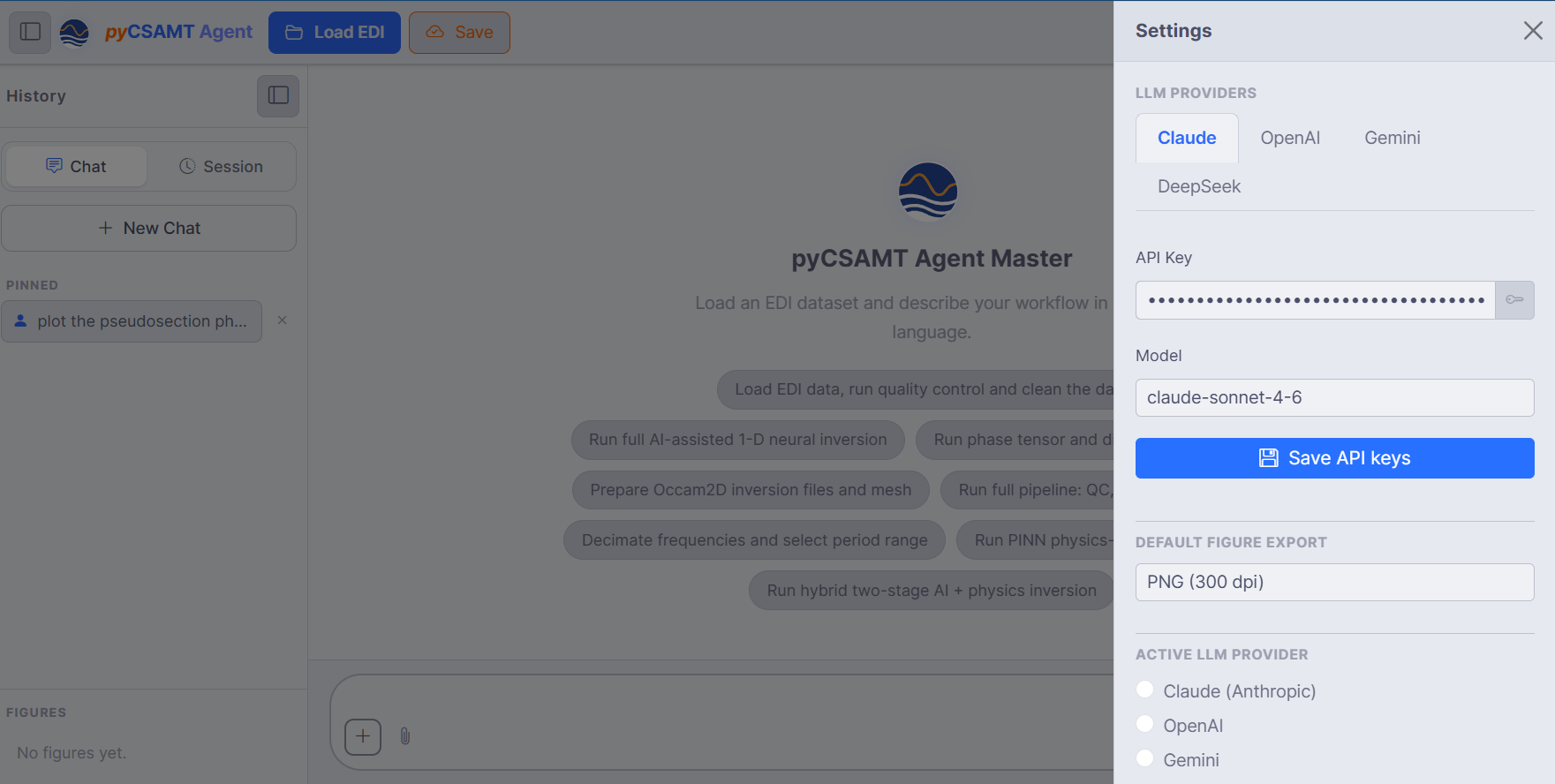
Settings with Claude (Anthropic) selected: the status badge reads
Key saved, the API key field is masked, and the model defaults to
claude-sonnet-4-6. Below the provider block sit the Default figure
export format, the Results output directory, and a Line registry
for pre-mapping survey line names to EDI folders.#
LLM Provider is a single selector rather than separate provider and “active provider” controls — whichever entry you pick both configures and activates that provider in one step:
Provider |
Default model |
Falls back to |
|---|---|---|
Claude (Anthropic) |
|
|
OpenAI |
|
|
Gemini (Google) |
|
|
DeepSeek |
|
|
MiniMax |
|
|
Offline (rule-based, no key) |
– |
nothing to configure |
The badge beside LLM Provider reports what Agent Master already knows
about the selected entry before you type anything: Key saved when a key
is stored in ~/.config/pycsamt/agent_master.json, From environment
when no stored key exists but the fallback environment variable above does,
No key when neither is present, and Zero cost for Offline, where the
question does not apply. The library-level rules behind that resolution —
including the additional environment variable names pycsamt checks per
provider — are documented in full in
Agent And LLM Configuration.
Once a provider other than Offline is selected, three more fields appear:
API key — paste the key for that provider; the eye icon reveals it, and leaving the field empty falls back to the environment variable above rather than clearing a previously saved key.
Model — the model id Agent Master will call; a capable default is pre-filled, but you can pick another from the list.
Save settings — writes the provider, key, and model to the local config file so they persist across launches.
Two further fields sit below the provider block regardless of mode: the
results output directory the orchestrator writes reports, figures, and
checkpoints into (defaulting to pycsamt_workflow_output/), and a line
registry that maps survey line names to EDI folders in YAML so a request
naming a line — process L22PLT — resolves without asking; see
Workflows And Agents for the in-chat line-selection panel this
registry complements.
5.5.2. Choosing A Provider And Model#
Open Settings and pick a provider from the LLM Provider list.
Paste its API key, or leave it blank if the fallback environment variable is already set on the machine running the server.
Adjust the model id if the pre-filled default is not the one you want.
Save settings.
Selecting a different provider later switches the active one immediately — there is no separate step to “activate” a provider you have already configured. You can save keys for more than one provider and switch between them freely; only the currently selected provider is used for the next request. When building on top of pyCSAMT programmatically, prefer the latest and most capable model each provider offers, the same guidance the library layer gives in Agent And LLM Configuration.
5.5.3. Privacy And Keys#
API keys are kept on your machine, saved to
~/.config/pycsamt/agent_master.json, and used only to call the provider you selected.Requests sent to an LLM-assisted provider are processed under that provider’s own terms — treat prompts and any pasted survey details accordingly.
No key is required to browse the interface, load data, or run workflows — Offline mode covers all of that at zero cost. A key only changes how well Agent Master understands free-form phrasing and how richly it writes back; see below.
5.5.4. Running Without A Model#
Offline is not a degraded fallback bolted onto an LLM-first app — it is a full deterministic mode, and it is what a fresh install runs in until you add a key. Asking what can you do? while Offline is selected returns the complete capability list and, at the end, explains exactly what a key would change:
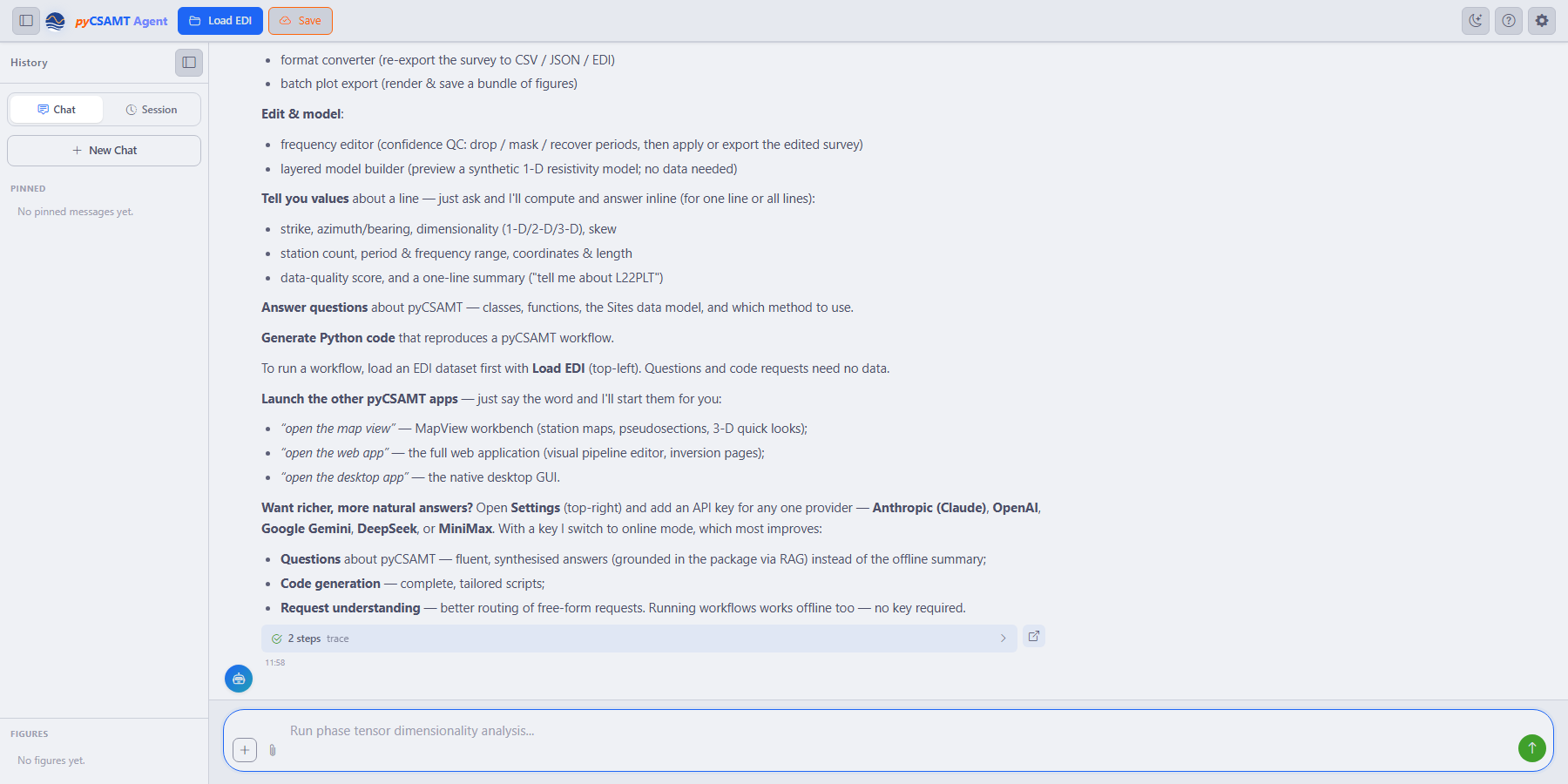
The tail of an offline what can you do? response. Every workflow, plot, and per-line query in the list above it already ran through the deterministic engine; a key would only make questions about pyCSAMT more fluent (RAG-grounded rather than the offline summary), code generation more tailored, and free-form request routing more forgiving.#
In practice this means the keyword-based orchestrator described in Workflow Orchestrator still resolves run QC on the data or prepare ModEM files correctly without any provider configured — it is only the more conversational features, such as open-ended questions about pyCSAMT internals or narrated report prose, that read noticeably better once a provider is active. If a specific request seems to need richer understanding than the offline summary gives it, that is the signal to open Settings and add a key, not a sign that the request itself requires one.
See also
- Agent And LLM Configuration
Provider and model configuration for the agents at the library level, including environment variables, deterministic mode, and programmatic setup.
5.5.5. Next Steps#
Workflows And Agents – what the configured model then lets you run.
Troubleshooting – provider connection and key problems.