
5.1. Overview#
5.1.1. What Agent Master Does#
Underneath the conversation sits an orchestrator that turns a plain-language request into a concrete, auditable run rather than a one-off chat reply:
Understands plain-language requests and routes them to the correct workflow — QC, static-shift, denoising, phase/strike analysis, tipper, rotation, frequency decimation, sensitivity, inversion prep, full pipelines, reports, and code generation.
Asks for parameters when a workflow needs them, through small in-chat forms, and asks which lines to process when several are loaded.
Runs the real pyCSAMT :term:`agent`s — the same code as the GUI and web app — and streams progress step by step.
Returns products: figures (collected in a Figures panel), reports, validated standalone Python scripts, and a step-by-step trace with timing and cost for provenance.
Works with or without an LLM — Offline mode runs every workflow through a deterministic rule-based engine at zero cost, and adding a key for Claude, OpenAI, Gemini, DeepSeek, or MiniMax layers on fluent understanding and richer prose (see LLM Configuration).
Because every one of these runs through the same agents and the same orchestrator described in Workflow Orchestrator, what you see in the chat is not a summary of the science — it is the science, narrated as it happens.
5.1.2. A Complete Request, Start To Finish#
The bullets above describe capabilities in the abstract; a single real
request shows how they fit together. With one survey line loaded (28 EDI
files from L18PLT, badged 28 EDI · 1 line(s) on the command bar)
and no LLM provider configured, typing Run quality control and clean
the data and pressing enter produces this, unedited:
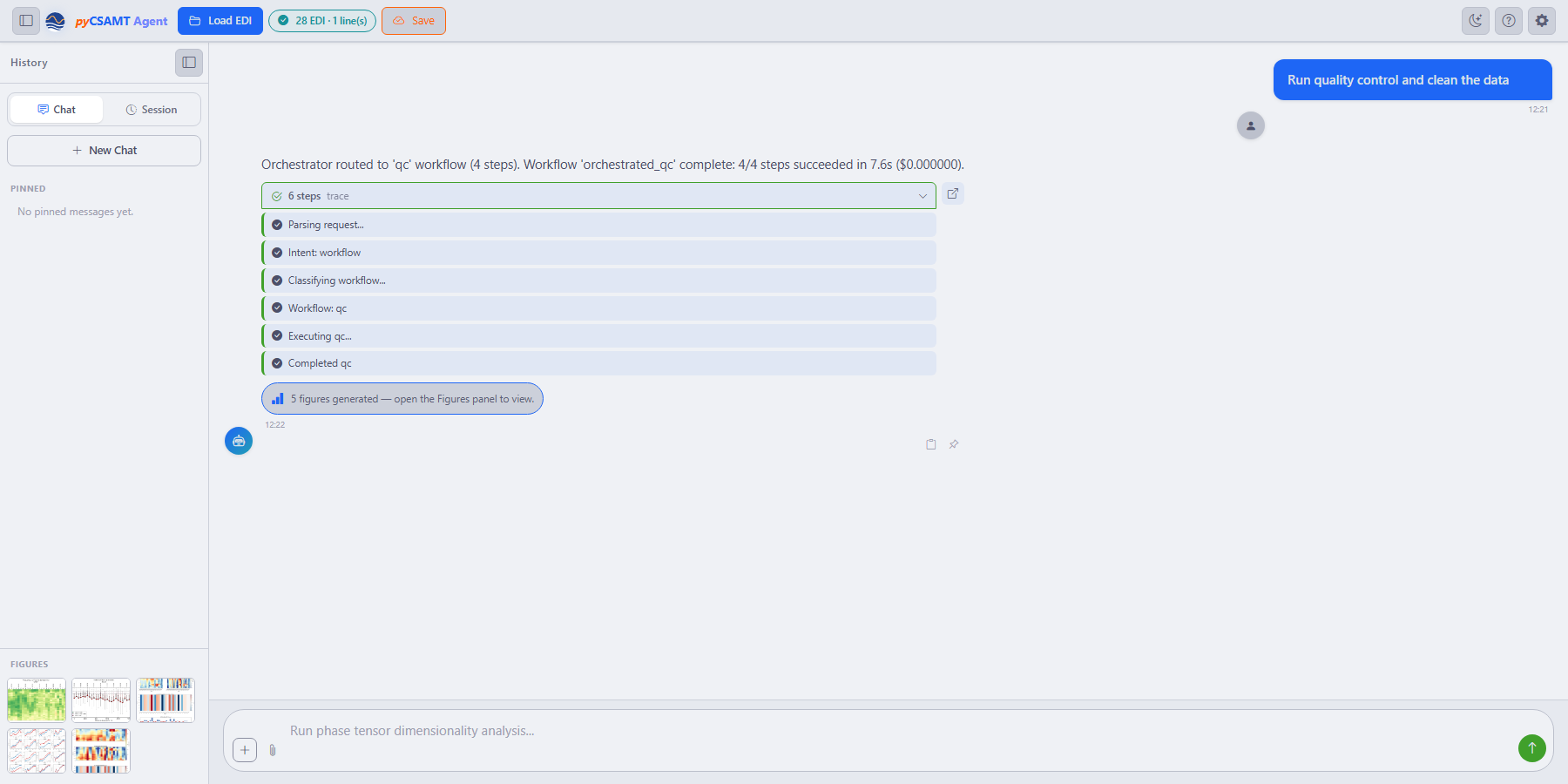
A finished qc run: the reply, the expanded steps trace, the
generated-figures note, and the Figures panel filled with five
thumbnails in the sidebar.#
Reading the reply against the bullets above makes the mapping explicit.
Understands plain-language requests and routes them is the first line —
Orchestrator routed to ‘qc’ workflow (4 steps). Runs the real agents and
streams progress is the expanded trace: Reading your request → Intent:
workflow → Choosing a workflow → Workflow: qc → Executing qc →
Completed qc, each step ticking green as it completes rather than
appearing all at once. Returns products is the outcome line — 4/4 steps
succeeded in 7.6s — plus the five figures now sitting in the sidebar and a
follow-up choice between Apply to session and Export to folder, so a
QC pass never silently overwrites the survey you loaded. And works with or
without an LLM is the number in parentheses at the end of the outcome line:
($0.000000), because Offline mode ran the whole thing without a configured
provider. Nothing about this trace would read differently with a key
configured — only the assistant’s prose around it would.
5.1.3. When To Use It#
Reach for Agent Master when:
you want to run a multi-step workflow by describing the goal, not by operating each page;
you want a reproducible script for a workflow you just ran;
you want a quick report or a guided inversion preparation;
you are learning what pyCSAMT can do and want to ask it directly.
For dense manual review — station-by-station QC, correction previews, map and 3-D inspection — the desktop, web, and MapView surfaces are still the right tools, and nothing is lost by moving between them: see Agent Master And The Other Apps for how results carry across.
5.1.4. Run Agent Master#
Nothing above needs an account or a key to try — launch the app and it opens straight into Offline mode, ready to load data and run workflows immediately.
pycsamt-agent
The launcher starts a local server on http://127.0.0.1:8765 and opens the
app in your browser. The module form works everywhere the package is
importable, which is convenient when the console-script entry point is not on
PATH or when launching from inside another Python environment:
python -m pycsamt.app.agent_master
See Installation And Launch for host, port, and browser options, and LLM Configuration for connecting a model when you want richer, LLM-assisted answers on top of the offline default.
5.1.5. The Interface At A Glance#
The window that opens keeps everything a session needs on one screen, so a long conversation never crowds out the record of what it produced:
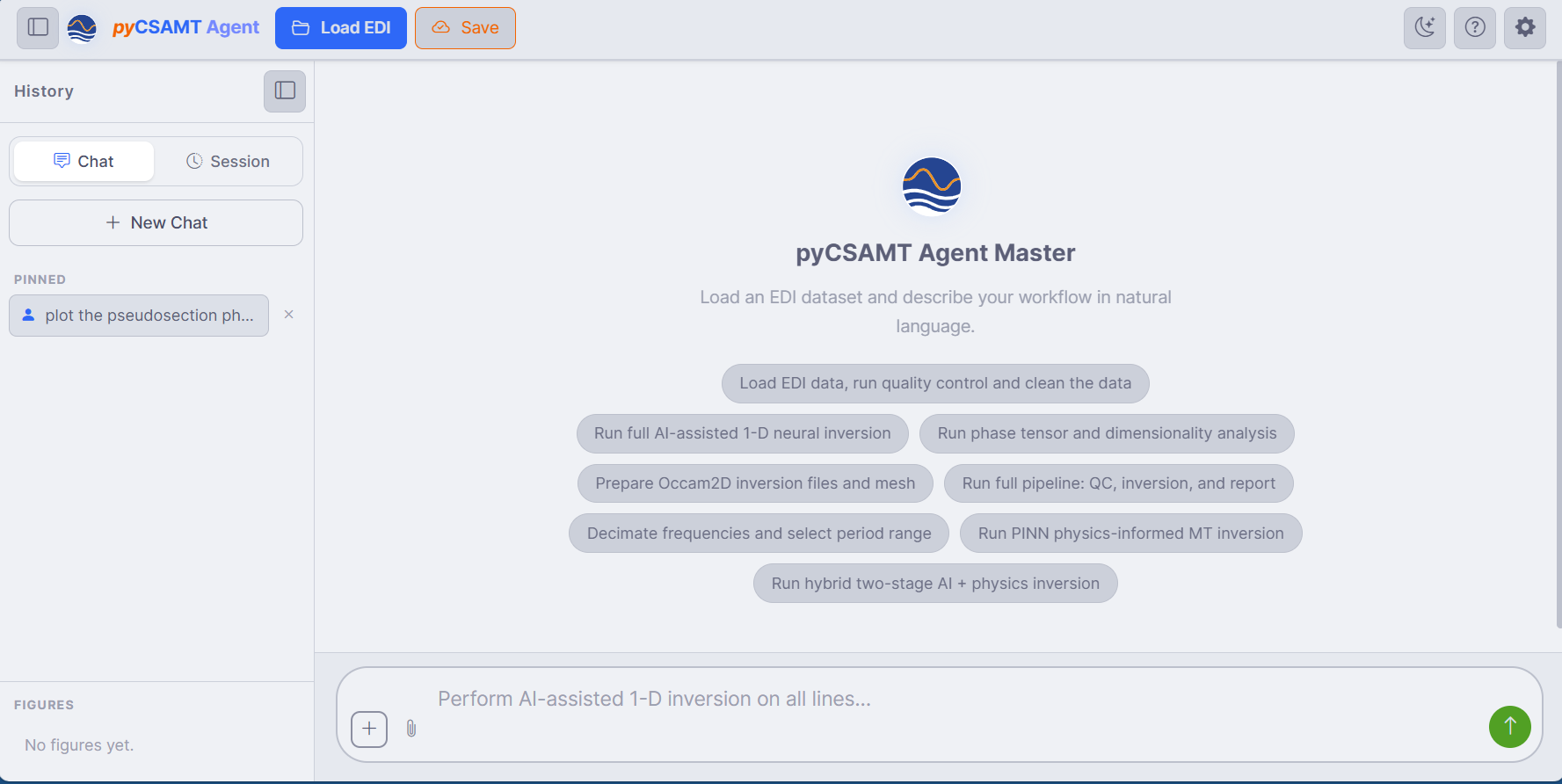
The main window: the command bar (Load EDI, Save, theme, help, Settings), the History sidebar (Chat / Session tabs, pinned prompts, and a Figures panel), the chat area with suggestion chips, and the natural-language input at the bottom.#
The suggestion chips in the chat area are not decorative — each is a complete, runnable request, so a new user can produce a first result by clicking rather than composing a prompt from scratch. From here, the natural next steps are loading data and sending a first request, covered in Welcome Screen And Chat.
See also
- Workflow Orchestrator
How the orchestrating agent behind this app plans and runs multi-step workflows — the guide to the brain, while this section documents the app surface.