
18.2. Read an EDI Survey#
This tutorial is the first practical step in most pyCSAMT workflows. It shows how to read one EDI file, a line directory, or a recursive survey tree, then turn the result into a station inventory that can be inspected, saved, passed to quality control, or used by downstream processing.
The goal is simple:
load the survey once, verify what was found, and keep a clean object for the next processing step.
18.2.1. What You Will Learn#
After this tutorial you should be able to:
read EDI files through the public
pycsamt.api.read_edis()APIunderstand the returned
APISurveyobjectinspect station names, paths, frequency counts, and section availability
convert the survey summary to a pandas dataframe
handle recoverable parser errors during first inspection
choose a duplicate-station policy
run equivalent command-line inspection commands
decide whether the survey is ready for QC, static-shift correction, or inversion preparation
18.2.2. Input Layouts#
read_edis accepts a single file, a directory, a glob-like path, or a
sequence of sources. The examples below use the bundled WILLY L18PLT line:
data/AMT/WILLY_DATA/L18PLT
Replace that path with your own EDI directory when you repeat the workflow. A common field layout is one folder per line:
data/AMT/WILLY_DATA/
    L18PLT/
      18-001A.edi
      18-002U.edi
      18-003A.edi
    L22PLT/
      22-001A.edi
      22-002U.edi
If you pass data/AMT/WILLY_DATA with recursive=True, pyCSAMT scans the
line folders and reads every .edi file it can discover.
For a flat directory, the layout can be simpler:
data/
  edis/
    S001.edi
    S002.edi
    S003.edi
The same API call works for both layouts.
18.2.3. Read a Survey Directory#
Use pycsamt.api.read_edis() for the public v2 API. During first
inspection, strict=False is usually the best choice because it keeps
reading the remaining stations when one file has a recoverable issue.
>>> from pycsamt.api import read_edis
>>> survey = read_edis(
...     "data/AMT/WILLY_DATA/L18PLT",
...     recursive=False,
...     strict=False,
...     on_dup="replace",
...     progress=False,
... )
>>> print(survey)
APISurvey: edi_survey
sites: 28
stations: 23-18-001A, 23-18-002U, 23-18-003A, 23-18-004A, 23-18-005U, 23-18-006A, 23-18-007U, 23-18-008U, ...
source: data/AMT/WILLY_DATA/L18PLT
The returned object is an APISurvey. It is a friendly public facade over
the lower-level EDI collection. It keeps the high-level workflow readable while
still exposing the raw collection when you need advanced operations. The
23- prefix on every station name is the EDI DATAID field
(23-18-001A, encoding the 2023 acquisition year), reported as-is rather
than trimmed – worth knowing before matching these names against a
QC or confidence table keyed on the plain 18-001A form.
>>> from pathlib import Path
>>> print(survey.n_sites)
28
>>> print(survey.stations[:5])
['23-18-001A', '23-18-002U', '23-18-003A', '23-18-004A', '23-18-005U']
>>> print([Path(p).name for p in survey.paths[:5]])
['18-001A.edi', '18-002U.edi', '18-003A.edi', '18-004A.edi', '18-005U.edi']
>>> collection = survey.collection
>>> same_collection = survey.to_collection()
>>> collection is same_collection
True
survey.paths itself returns fully-resolved absolute filesystem paths, not
bare filenames – Path(p).name is applied above to keep the printed
list short and portable across machines; use the raw survey.paths value
when you need the actual location on disk. survey.collection and
survey.to_collection() return the identical EDICollection object, not
just the same type – to_collection() is a convenience alias, not a
fresh copy, and is the type used by many lower-level EDI, site, editing, and
QC helpers.
18.2.4. Read One EDI File#
For a single EDI file, use pycsamt.api.read_edi() when you want the raw
EDIFile object directly:
>>> from pycsamt.api import read_edi
>>> edi = read_edi("data/AMT/WILLY_DATA/L18PLT/18-001A.edi")
>>> print(edi.station)
23-18-001A
If you want the same APISurvey interface used by the rest of this tutorial,
read the file with read_edis instead:
>>> survey1 = read_edis(
...     "data/AMT/WILLY_DATA/L18PLT/18-001A.edi",
...     recursive=False,
...     progress=False,
... )
>>> print(survey1.n_sites)
1
>>> print(survey1.summary())
APIFrame: edi_survey_summary
kind: edi.summary
shape: 1 rows x 6 columns
columns: station, path, n_freq, tipper, spectra, ts
numeric: 1 columns
missing: 0.0%
source: data/AMT/WILLY_DATA/L18PLT/18-001A.edi
This is useful when you are writing reusable code that should accept either one file or many files.
18.2.5. Build a Station Inventory#
The fastest survey inventory is survey.summary(). It returns an
APIFrame with a compact station-level table.
>>> summary = survey.summary()
>>> print(summary)
APIFrame: edi_survey_summary
kind: edi.summary
shape: 28 rows x 6 columns
columns: station, path, n_freq, tipper, spectra, ts
numeric: 1 columns
missing: 0.0%
source: data/AMT/WILLY_DATA/L18PLT
>>> inventory = summary.to_pandas(copy=True)
>>> compact = inventory.copy()
>>> compact["path"] = compact["path"].map(lambda value: Path(value).name)
>>> print(compact.head(5).to_string(index=False))
   station        path  n_freq  tipper  spectra    ts
23-18-001A 18-001A.edi      53   False    False False
23-18-002U 18-002U.edi      53   False    False False
23-18-003A 18-003A.edi      53   False    False False
23-18-004A 18-004A.edi      53   False    False False
23-18-005U 18-005U.edi      53   False    False False
The figures in this tutorial are generated by
docs/scripts/generate_tutorial_read_edi.py. This overview shows that every
loaded station has 53 impedance-frequency rows and that the bundled line does
not include tipper, spectra, or time-series sections:
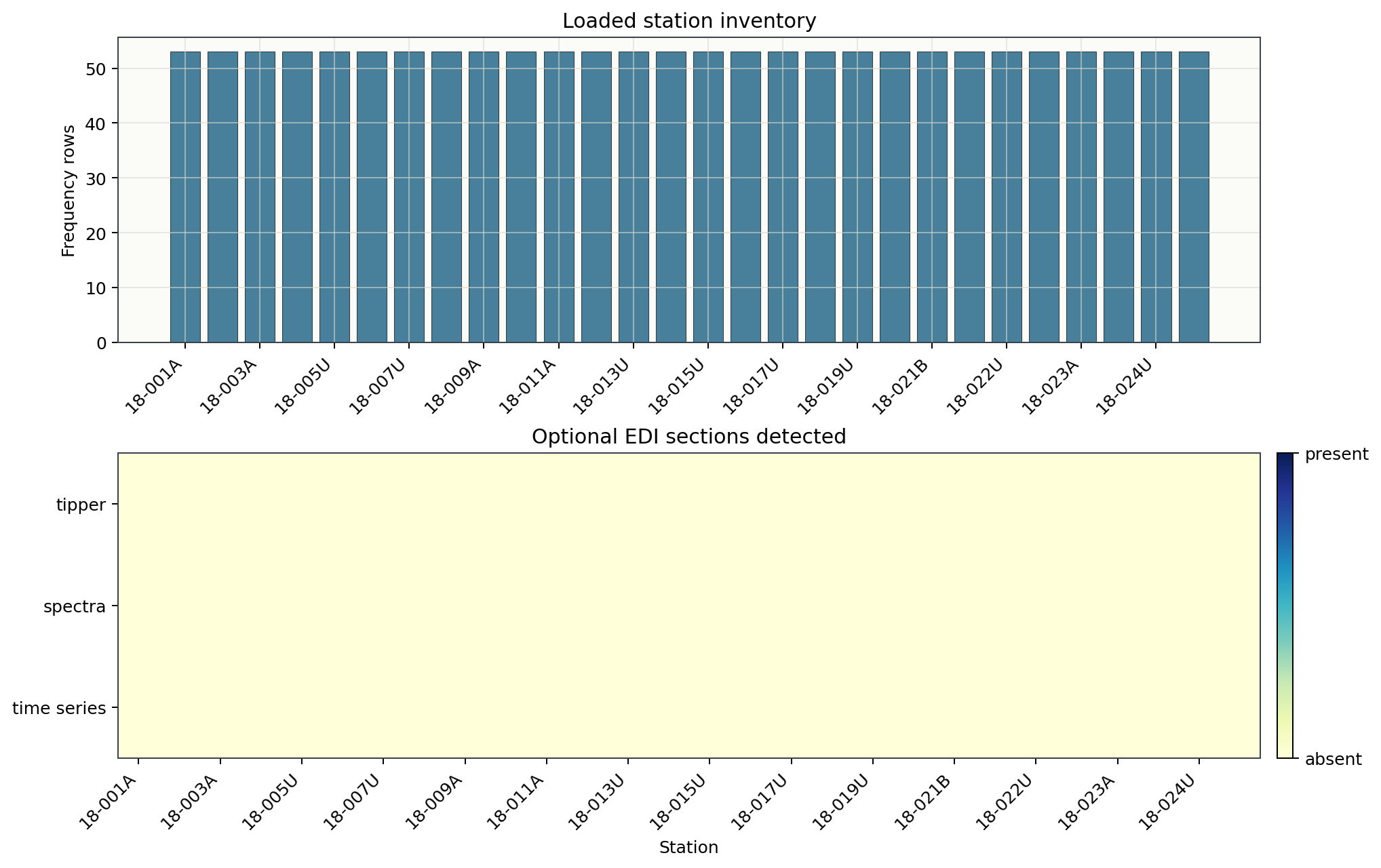
Both panels confirm the same two facts visually: the top panel’s markers sit
on a flat line at 53 for every one of the 28 stations (no station lost
frequencies during acquisition or parsing), and the bottom panel is solid
dark blue across the whole period range for every station (every frequency
sample is present, not just counted). A ragged top line or a mottled bottom
panel would be the visual signal to investigate specific stations before
moving on, rather than a uniform coverage problem.
The default columns are:
stationStation name inferred from the EDI file.
pathSource file path.
n_freqNumber of frequency rows read from the impedance section.
tipperWhether non-empty tipper data are available.
spectraWhether a spectra section was parsed.
tsWhether a time-series section was parsed.
For a focused table, request the columns you want:
>>> station_table = survey.summary(
...     fields=["station", "n_freq", "tipper", "path"],
... )
>>> focused = station_table.to_pandas(copy=True)
>>> focused["path"] = focused["path"].map(lambda value: Path(value).name)
>>> print(focused.head(3).to_string(index=False))
   station  n_freq  tipper        path
23-18-001A      53   False 18-001A.edi
23-18-002U      53   False 18-002U.edi
23-18-003A      53   False 18-003A.edi
Save the inventory for a field notebook, spreadsheet review, or processing report:
>>> inventory.to_csv("survey_inventory.csv", index=False)
18.2.6. Inspect Stations Programmatically#
The APISurvey object behaves like a small collection. You can iterate over
loaded EDI objects, select one by name, or access a station by index.
>>> for i, edi in enumerate(survey):
...     if i >= 3:
...         break
...     print(edi.station, Path(edi.path).name)
23-18-001A 18-001A.edi
23-18-002U 18-002U.edi
23-18-003A 18-003A.edi
>>> first = survey[0]
>>> type(first).__name__, first.station
('EDIFile', '23-18-001A')
>>> station = survey.stations[0]
>>> selected = survey.get_site(station)
>>> selected.station == first.station
True
Dropping the if i >= 3: break guard iterates over all 28 stations
instead of just the first three shown here. first is a real EDIFile,
the underlying EDI object, and its station is still 23-18-001A –
the DATAID-derived name is consistent at every level of the API, not just
at the survey-table level. get_site
accepts the common identifiers used by the collection resolver, including
station names and file stems, and selected above resolves to the exact
same station as first.
get_site returns None by default when a station cannot be resolved,
rather than raising:
>>> maybe_site = survey.get_site("S999")
>>> maybe_site is None
True
>>> if maybe_site is None:
...     print("Station not found")
Station not found
18.2.7. Handle Parser Errors#
EDI files from different acquisition or processing software can vary in
metadata style. For a first pass, keep strict=False and inspect parser
errors after loading:
>>> errors = survey.errors()
>>> print(f"{len(errors)} read error(s)")
0 read error(s)
>>> for path, exc in errors[:10]:
...     print(path, type(exc).__name__, exc)
The bundled line reads without parser errors, so the second loop above prints nothing – on a survey with real parser issues, each line would show the offending file path, the exception class, and its message, which is usually enough to tell a recoverable metadata quirk apart from a file that needs re-export.
Use strict=True in automated validation jobs when the workflow should fail
as soon as one EDI cannot be read:
>>> strict_survey = read_edis(
...     "data/AMT/WILLY_DATA/L18PLT",
...     recursive=False,
...     strict=True,
...     progress=False,
... )
>>> strict_survey.n_sites
28
This stricter mode is useful before committing data to a project archive or before running a batch inversion pipeline. On this clean bundled line, both modes load the same 28 stations; the difference only shows up on a survey with a genuinely broken file.
18.2.8. Choose a Duplicate Policy#
Station names should normally be unique inside one survey or line. When two EDI
files resolve to the same station name, on_dup controls which object is kept
in the returned survey:
on_dup="replace"Keep the last station discovered for that name. This is the default and is useful when a later file is the corrected version.
on_dup="keep"Keep the first station discovered for that name. This is useful when the directory contains temporary exports that should not override the original file.
Example:
>>> multi_line = read_edis(
...     "data/AMT/WILLY_DATA",
...     recursive=True,
...     on_dup="keep",
...     progress=False,
... )
>>> len(multi_line.stations)
128
>>> multi_line.stations[:5]
['23-18-001A', '23-18-002U', '23-18-003A', '23-18-004A', '23-18-005U']
>>> multi_line.stations[-3:]
['23-34-023U', '23-34-024U', '23-34-025A']
data/AMT/WILLY_DATA contains five line folders (L18PLT, L22PLT,
L26PLT, L30PLT, L34PLT), and this recursive read finds all 128
stations across them, distinguished by their line-number prefix
(18-, 22-, 26-, 30-, 34-). No station name collides
across lines here, so on_dup="keep" never actually has to choose between
two files – but on a project where two exports genuinely share a station
name, this is exactly the setting that decides which file wins. If
duplicate names are unexpected, inspect the source paths and fix the station
metadata or file selection before continuing.
18.2.9. Control Progress Output#
The progress argument is intended for both notebooks and scripts:
>>> interactive = read_edis("data/AMT/WILLY_DATA/L18PLT", progress="auto")
>>> quiet = read_edis("data/AMT/WILLY_DATA/L18PLT", progress=False)
>>> always_show = read_edis("data/AMT/WILLY_DATA/L18PLT", progress=True)
>>> interactive.n_sites, quiet.n_sites, always_show.n_sites
(28, 28, 28)
progress only changes whether a progress indicator is written to the
console while reading; it never changes which stations are loaded. Use
progress=False in tests, scheduled jobs, and log files. Use
progress="auto" during interactive survey inspection.
18.2.10. Read Several Sources#
You can pass several folders or files at once. This is helpful when a project has separate field folders but you want one in-memory survey for inspection.
>>> two_lines = read_edis(
...     [
...         "data/AMT/WILLY_DATA/L18PLT",
...         "data/AMT/WILLY_DATA/L22PLT",
...     ],
...     recursive=True,
...     on_dup="replace",
... )
>>> print(two_lines.summary())
APIFrame: edi_survey_summary
kind: edi.summary
shape: 53 rows x 6 columns
columns: station, path, n_freq, tipper, spectra, ts
numeric: 1 columns
missing: 0.0%
source: ['data/AMT/WILLY_DATA/L18PLT', 'data/AMT/WILLY_DATA/L22PLT']
The merged survey has 53 rows – the full 28 from L18PLT plus 25 from
L22PLT, so no station names collided between the two lines. Individual
files can be mixed into the same list alongside folders (for example a
single stray .edi recovered separately from the rest of a line); the
list form and the loading behaviour are identical whether every entry is a
folder or some entries are single files.
Before moving into QC, a quick filename regularity check can catch mixed exports or accidental files:
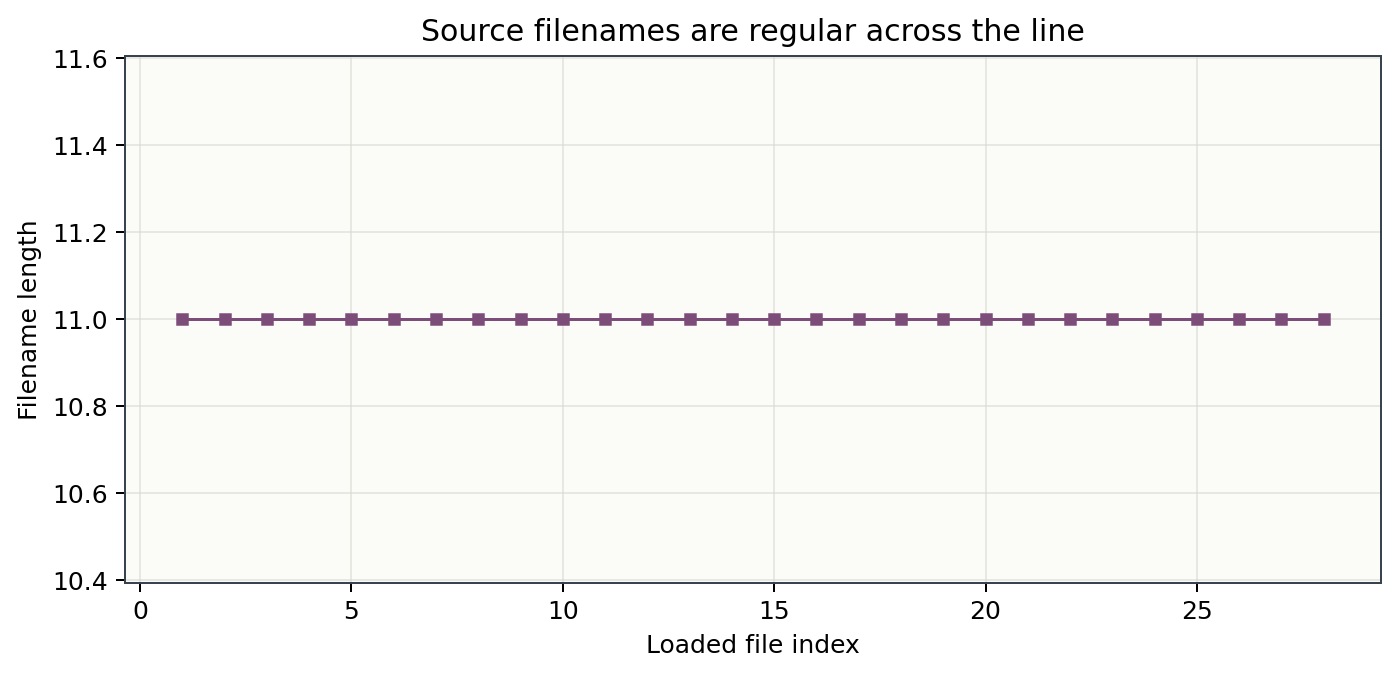
Every one of L18PLT’s 28 filenames is exactly 11 characters
(18-001A.edi, 18-002U.edi, …), so the plotted line is perfectly
flat. A single station with a differently formatted filename – a longer
name, a missing zero-pad, an extra suffix from a re-export – would show up
as a visible spike, which is often the fastest way to notice that one file
in a folder came from a different acquisition batch or software export than
the rest.
Keep this merged survey only when the stations belong to the same processing context. For inversion preparation, line identity and profile geometry often matter, so many projects keep one survey object per line.
18.2.11. Use the CLI for Quick Checks#
The command-line interface is useful before opening Python or when you want a small report in a shell workflow.
Show a compact metadata summary:
1pycsamt edi info data/AMT/WILLY_DATA/L18PLT
2pycsamt edi info data/AMT/WILLY_DATA/L18PLT --top 10
3pycsamt edi info data/AMT/WILLY_DATA/L18PLT --format csv
Show station coordinates:
1pycsamt edi stations data/AMT/WILLY_DATA/L18PLT
2pycsamt edi stations data/AMT/WILLY_DATA/L18PLT --sort-by lat
3pycsamt edi stations data/AMT/WILLY_DATA/L18PLT --pattern "18-*" --format csv
Validate EDI structure:
1pycsamt edi validate data/AMT/WILLY_DATA/L18PLT
2pycsamt edi validate data/AMT/WILLY_DATA/L18PLT --no-deep
3pycsamt edi validate data/AMT/WILLY_DATA/L18PLT --format json
Estimate profile geometry when a directory represents one survey line:
1pycsamt edi profile data/AMT/WILLY_DATA/L18PLT
2pycsamt edi profile data/AMT/WILLY_DATA/L18PLT --bearing-method linear --distances
These commands complement the Python API. Use the CLI for fast inspection; use Python when you need reusable processing, filtering, plotting, or export logic.
18.2.12. Move to QC#
After reading the survey, the next step is normally a quality-control table.
The survey.collection object can be passed directly to the QC helpers:
>>> from pycsamt.emtools.qc import build_qc_table
>>> qc = build_qc_table(
...     survey.collection,
...     include_skew=True,
...     recursive=False,
...     api=True,
... )
>>> qc_df = qc.to_pandas(copy=True)
>>> qc_df.to_csv("survey_qc.csv", index=False)
The QC tutorial (Inspect and QC a Survey) explains how to interpret this table and decide which stations need review.
If you want one more visual check before QC, a survey fingerprint compresses phase-tensor behavior across stations and periods:
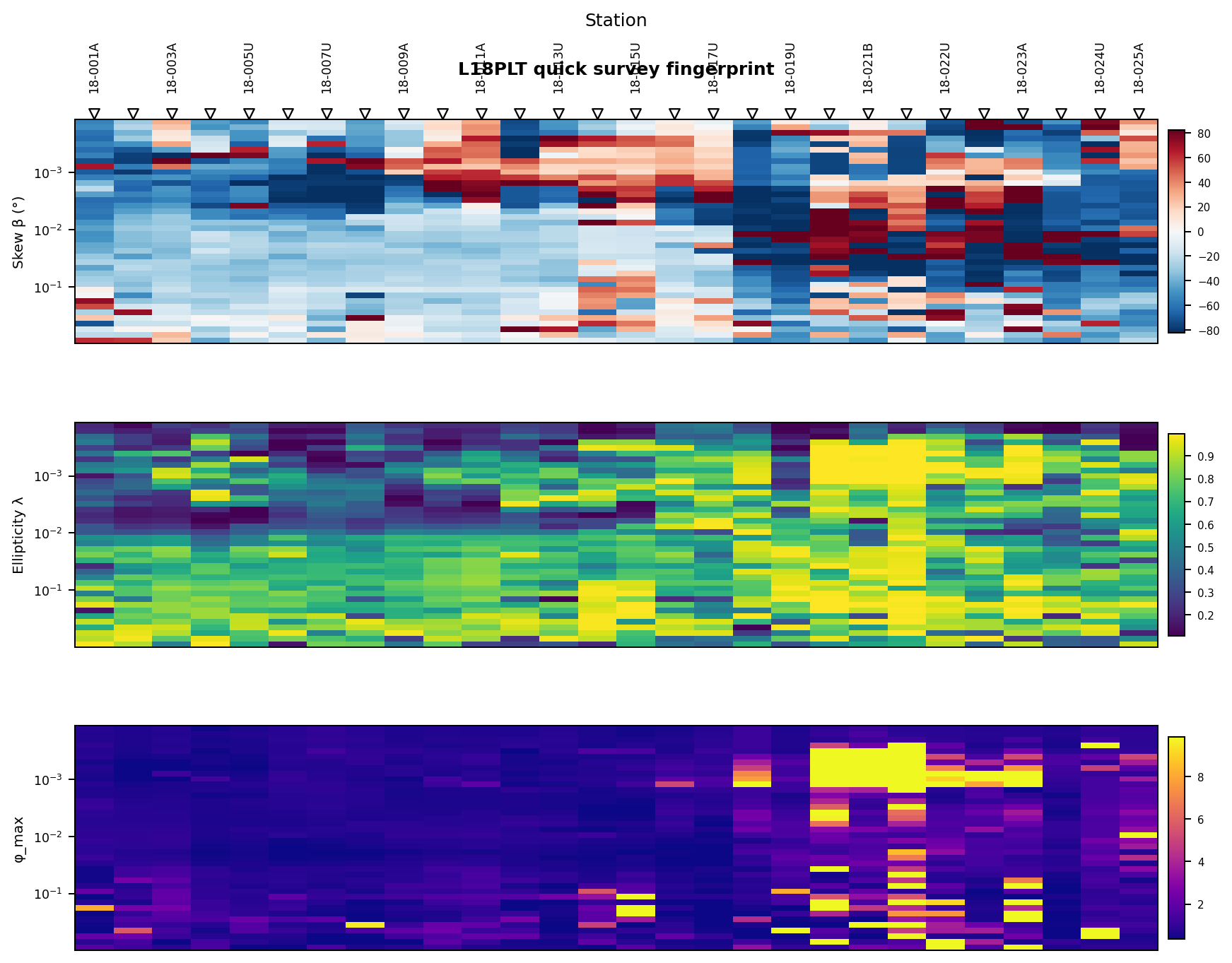
The three panels (skew, ellipticity, and maximum phase) all show the same
break partway along the profile: stations from 18-001A to roughly
18-017U are comparatively calm (pale, low-contrast skew; muted
ellipticity), while stations from about 18-019U onward turn visibly
noisier – strong alternating red/blue skew patches and bright yellow
ellipticity and phi_max streaks concentrated at short periods. That is
not a coincidence: 18-017U, 18-021U, 18-021B, and 18-022U
are exactly the stations Inspect and QC a Survey flags as low-confidence
using an entirely different, non-visual method (tensor consistency,
diagonal leakage, and spatial coherence scores). Seeing the same stations
stand out in a quick phase-tensor image and in a numeric confidence table is
a useful cross-check – neither view depends on the other, so agreement
between them is real evidence, not a restatement of the same calculation.
18.2.13. Troubleshooting#
- No stations were loaded
Check that the source path exists, that files use the
.ediextension, and thatrecursive=Trueis enabled when EDI files are inside line subdirectories.- The station count is smaller than the number of files
Some files may share the same station name. Inspect
survey.pathsand reviewon_dup. Use unique station names before final processing.- The reader reports errors but still returns a survey
This is expected with
strict=False. Reviewsurvey.errors()and decide whether the affected files can be ignored, repaired, or re-exported.- The summary has fewer columns than expected
survey.summary()is intentionally lightweight. Use EDI station, profile, site, QC, or plotting tools for richer diagnostics.- The CLI and Python show different station order
Directory traversal and sorting options can affect display order. Use the CLI
--sort-byoptions or sort the pandas dataframe explicitly when order matters.
18.2.14. Next Steps#
Run quality-control tables with Inspect and QC a Survey.
Compare two lines before reusing one QC config with Compare Survey Lines for QC.
Correct static shift with Correct Static Shift.
Prepare inversion files with Prepare an Occam2D Inversion.
18.2.15. See Also#
- Identify your data format
Supported data layouts and file-format expectations.
- Loading electromagnetic data
Data loading concepts and reader selection.
- EDI Commands
EDI command reference.
- pycsamt.api
Public API reference.